Step 1: One video generation using one character image.
Step 2: Some basic editing to add grain and text.
You can download the static overlay and the audio at the bottom of this page.
STEP 1
Generating the video
Using Seedance 2.0
1
Add your character reference.
Character reference image
2
Use the prompt below to generate the video.
Set the video length to 11 seconds. 720p is fine; 1080p is overkill.
SEEDANCE 2.0 PROMPT
[Style] Shot on heavily degraded expired 16mm film stock, extreme coarse film grain covering the entire frame like dense television static, constant flickering photographic noise, grimy low-fidelity analog texture, pushed high-ISO night film, visible grain structure in every shadow and highlight, gritty VHS-like degradation, NOT clean, NOT polished, NOT smooth digital. Cinematic, crushed black shadows, cold desaturated blue-grey palette, deep near-black negative space, faint cold moonlight as the only light source, muted low contrast, slight film-gate weave, no warm tones, photographic realism. All characters rendered with anatomically accurate full-body adult proportions and full natural height regardless of how the reference image is framed. 16:9.

[Timing] Total duration exactly 10 seconds, three shots with hard cuts at exactly 5.0s and 8.0s. Shot 1 lasts exactly 5 seconds. Shot 2 lasts exactly 3 seconds. Shot 3 lasts exactly 2 seconds. Do not extend or shorten any shot.

[Shot 1 — 0.0s to 5.0s, duration 5 seconds] Medium shot, framed waist-up. The character from the reference image walks slowly straight toward the lens through near-total darkness, heavy strained gait, shoulders dropped, head bowed, labored exhausted movement. A thin cold light skims their face and form as they drag themselves closer. Near the end of the shot they lift their head and look directly up into the camera. Camera locked off with a very slow subtle push-in. Background is a pure black void with a single weak overhead light. Heavy coarse static-like grain over everything, breathing darkness.

[Hard cut at 5.0s]

[Shot 2 — 5.0s to 8.0s, duration 3 seconds] Wide low-light night field. Over-the-shoulder framing set off to one side at a three-quarter angle, not directly behind, so the back of the character's head and one shoulder sit small in the lower corner of the frame, out of focus. They face across a very dark grassy field toward a second, identical version of the same character standing a short distance away, facing them. Both figures full-body with natural adult proportions and full height. The grass sways gently in a soft breeze, faintly visible where the cold light skims it. The distant character breathes slowly and shifts their weight slightly. Very subtle handheld camera float, small organic drift. Heavy coarse grain and flickering film noise over the entire frame.

[Hard cut at 8.0s]

[Shot 3 — 8.0s to 10.0s, duration 2 seconds] Extreme wide side profile. The two identical characters stand facing each other across a dark grassy slope under cold moonlight, close to each other, the second one elevated on the incline at frame right, the first lower at frame left. Both full-body with accurate adult proportions and full height. Sparse grass ripples gently in the breeze, barely catching the light. Both characters breathe subtly with small weight shifts. Very subtle handheld camera float. Heavy coarse static-like grain and constant film noise over everything.
STEP 2
Adding grain and text
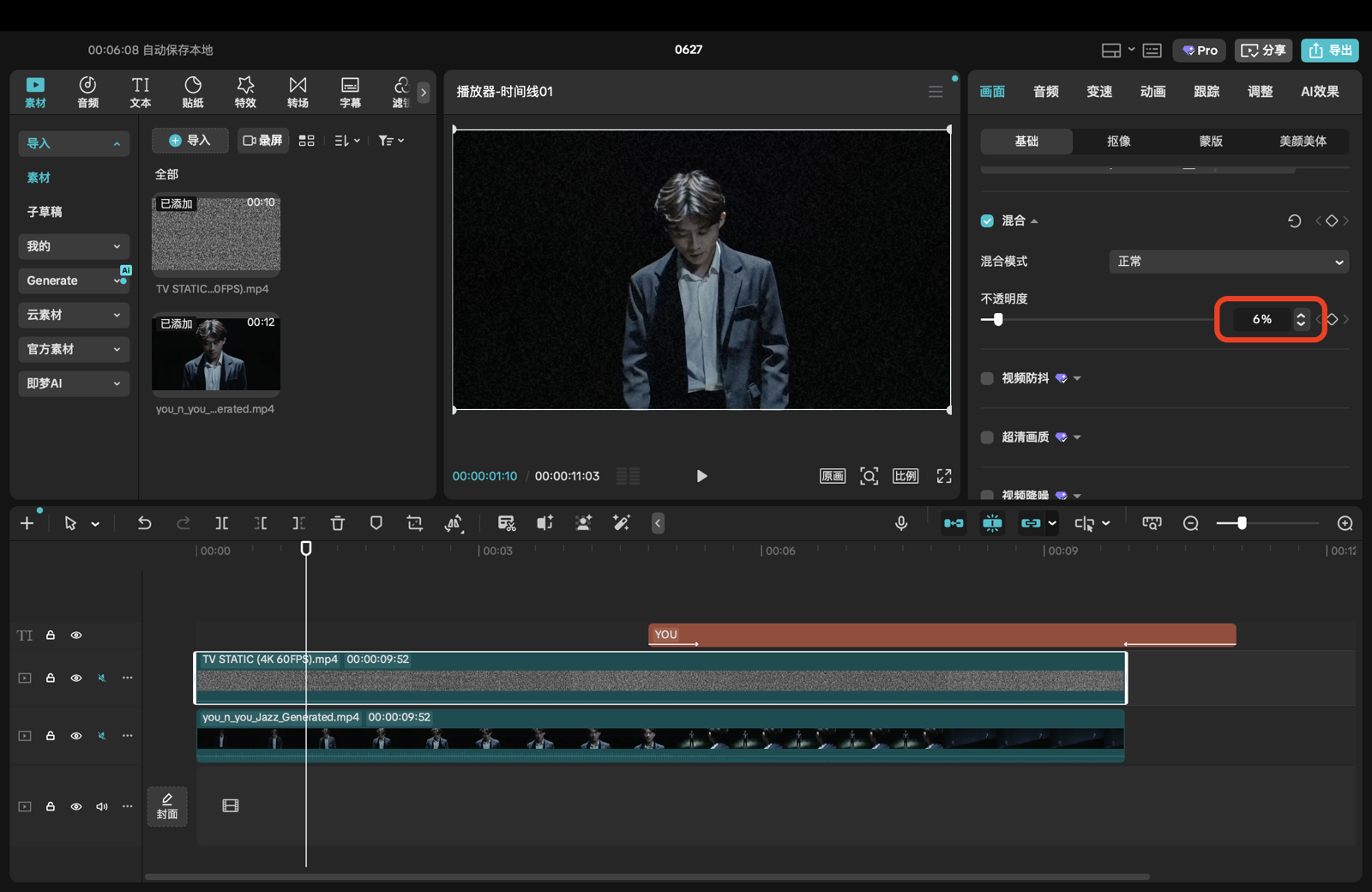
I use CapCut Pro for editing, but you can use any software such as Adobe Premiere Pro, DaVinci Resolve, etc.
1
Download the static grain overlay at the bottom of this page.
2
Drag the overlay file onto a video track directly above your footage.
3
Select the overlay clip, open the Inspector, and change the Composite Mode in the Video tab to Screen. Set the Opacity to 6–7%.
Grain overlay placement and opacity settings in CapCut Pro
4
Add a small text that says “YOU” starting at the second scene.